

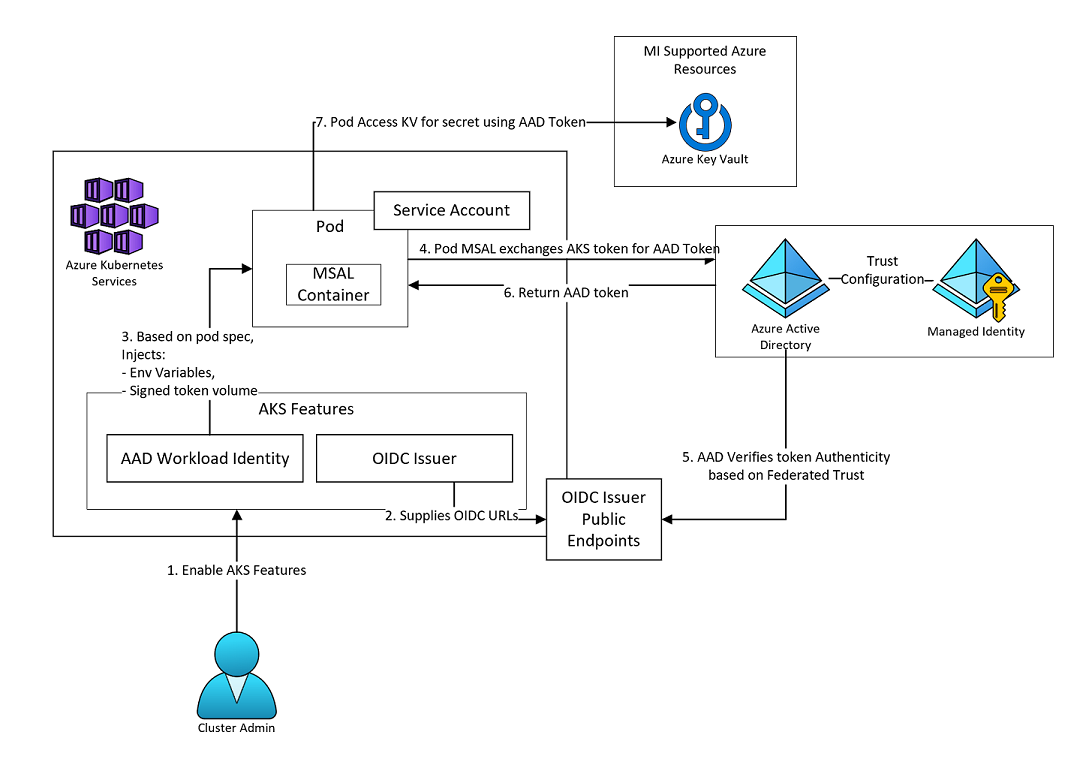
Managing secrets across dozens of websites and APIs in Azure Kubernetes Service (AKS) can be a nightmare if you’re still using static credentials. Hardcoded secrets, long-lived keys, and manual rotations increase the risk of exposure and slow down deployments. On Azure Kubernetes Service (AKS), we’ve evolved with the Secrets Store CSI Driver, Azure Key Vault, and Workload Identity Federation.
This setup enables every pod – across all your websites – to mount secrets directly from Key Vault as ephemeral volumes, authenticated via OpenID Connect (OIDC) tokens. No secrets in code, no keys to manage – just dynamic, federated identities.
In this guide, we’ll build a zero-trust, fully automated secret management system using:
-
Terraform for dynamic provisioning
-
Azure Workload Identity Federation for secure, token-based authentication
-
Secrets Store CSI Driver + Azure Key Vault Provider for ephemeral secret access
Perfect for multi-tenant platforms like Coderise, where each website needs isolated, dynamic access to its secrets – without managing credentials manually.
Why Federated Workload Identity?
Traditional Kubernetes secrets are stored in etcd and base64 encoded – not ideal for production security. Workload Identity Federation replaces credentials with OIDC-issued tokens that Azure trusts, meaning no keys, no rotations, no leaks.
How it works:
-
AKS issues an OIDC token for a pod’s service account.
-
Azure trusts that token through a federated credential tied to a User-Assigned Managed Identity (UAMI).
-
The pod authenticates to Azure Key Vault using that token – no secret stored in the cluster.
Architecture Overview
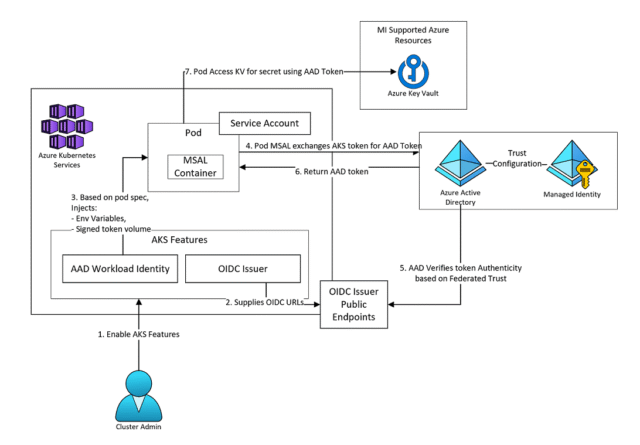
Each website (namespace) gets its own Kubernetes service account dynamically federated to Azure via Terraform.
Step 1: AKS Setup with Workload Identity
Enable OIDC and Workload Identity when creating your AKS cluster:
Step 2: Key Vault & Identity Configuration
Create your Key Vault and grant your kv_identity read access to secrets.
Step 3: Dynamic Federated Identity Loop in Terraform
Here’s where the automation magic happens. For each website’s service account, Terraform creates a federated credential linking AKS → Azure.
After connecting to your AKS cluster, install the CSI driver and Azure provider via Helm:
Step 5: Kubernetes Setup per Website
Each website gets its own namespace, service account, and SecretProviderClass. Keep things isolated.
ServiceAccount
SecretProviderClass
Pod Mount Example
Lessons Learned
-
Namespace Mismatch = Token Denial: Always match your Terraform
subjectwith the Kubernetes ServiceAccount namespace. E.g.system:serviceaccount:site-a:site-a-sa. -
Secret Rotation Lag: First mounts may delay a bit; set
rotationPollInterval=1mfor production. -
Scale-Friendly: Terraform loops easily handle 50+ websites; modularize to keep plans fast.
Troubleshooting Quick Wins
-
Check CSI logs:
kubectl logs -n kube-system -l app=csi-secrets-store-provider-azure -
Validate federated credentials:
az identity federated-credential list --id <uami-id> -
Verify subject formatting: Mistyped namespaces or service account names are the most common cause of denials.
Best Practices
-
Automation: Source the website service account list from CI/CD variables or a config repo to avoid manual edits.
-
Network Security: Use Key Vault private endpoints and VNet ACLs to limit access.
-
Monitoring: Enable Azure Monitor and diagnostic logs for Key Vault and AKS; alert on access anomalies.
-
Template Deployments: Use Helm or Kustomize to standardize per-site ServiceAccount, SecretProviderClass, and deployment manifests.
Resources & Further Reading
-
Azure Workload Identity Federation – Microsoft Docs
-
Secrets Store CSI Driver for Azure Key Vault – Microsoft Docs
-
Terraform azurerm_federated_identity_credential – Terraform Registry

